Saturday, June 23, 2012

KiCAD the schematic/PCB design suite

As many folks who start with hobby electronics design, I started with Eagle, because that's what most of other folks seem to use. I was able to produce a simple board, but fairly speaking, I have mixed feelings about it - both UI, structure, and functionality could be better.

I didn't try KiCAD right away because I read lot of (apparently old, or FUDish) notes that it lacks basic features, unstable, and complicated. I finally got to try fairly recent version of KiCAD and was astonished how logical, fairly easy to use, and well-performing it is. Yes, it is still could do better, for example, it's hard to understand what precludes to use direct manipulation GUI, where you can drag an object with ... dragging an object with mouse, but at least commands for manipulation are standard, complete, and available via context menu. So, doubts off, KiCAD should be *the* toolkit for Open Hardware.

So, what are the outstanding features of KiCAD?
  • Separation of schematic symbol vs PCB footprint - they are not linked in the component library, but instead are linked as part of PCB design process
  • Text-based formats for all files
One of the reasons why Eagle is advertized as suitable for beginners and community in general is availability of many component libraries. Indeed, some parties go out of their way to create own, adhoc, from-scratch, and thus hard-to-reuse libraries. But this problem is virtually not existent with KiCAD due to the design features above.

Of course, its standard library contains all/most discrete components. Next, for infinite number of ICs, you don't need to draw each of them in all possible and impossible packages - there's finite number of packages, KiCAD already has great selection of, and you can create missing once and reuse it for new chips very easily. Secondly, a schematic symbol for a chip is a rectangle with pins sticking out of it, so to "create" a new chip, only pin names needed, the rest can be easily scripted thanks to text-based format (and there're existing tools, albeit they don't seem to be open-source).

Now few notes about installing. Current version of Ubuntu ship rather old (one-year as of writing) version of KiCAD, only upcoming Quantal ships (as of now) 0.20120526+bzr3261-1, and that's what I downloaded and installed manually on Precise (12.04) without any issues. There's also daily builds from trunk, and that's what I'm going to try next, just wanted to start from a known stable reference. So far, I had one crash with 0.20120526+bzr3261-1, without any adverse effects.

Don't forget to install package kicad-doc-en. Unfortunately, Quantal's version still includes older version of tutorial, you need latest version called "Getting_Started_in_KiCad.pdf", you can find it here. Following the tutorial will give you complete walkthru of KiCAD workflow, enough to produce your boards, including custom components.


Thursday, May 10, 2012

Solar cell types and their looks

Following cool solar experiments at jeelabs.org, I also got idea to attach something to a solar cell. But first, figure out what types of them exists and available. Regarding the first, you can read in Wikipedia. But that's example of dried-out wikipedia article, giving a lot of formal facts, but little practical knowledge. What I'd like to know is what types are typically available in small consumer products.

Here's what I researched. First type is brownish, with regular vertical or horizontal lines. It's the type of solar cell which have been see for at least 20 years in calculators. So, that's amorphous silicon solar cell, less expensive (explains why we had it for 20 years around) and less efficient, they say. But they also say that there're special subtypes, designed to work in low-light conditions (specifically, provide enough voltage, even though current may be miniscule). Here's how it typically looks:

Last years, another type became widely available in cheap stuff - crystalline silicon solar cells. In cheap stuff, they look like black (or dark) colored plate, covered with few millimeter of something like epoxy, in which you can clearly see metal wires - oftentimes in irregularly spaced groups. Looking closely, it can be seen that epoxy actually holds individual bars of crystalline silicon, and irregular spacing of builtin wires are in particular due to irregular cuts of these bars in the original wafer.

Here's close up:
They say that crystalline is more efficient than amorphous, but more expensive. Explains why we started to see it around much later than amorphous. There's also mono-crystalline and poly-crystalline varieties, the first being more expensive, so my guess is that in cheap stuff we have poly-crystalline. It appears that small-size crystalline are rated for smaller voltage (2v) than an amorphous, which you can find for ~5V.
They also say that under dimmer lighting, crystalline cells provides reduced voltage.

Wednesday, May 9, 2012

"Arduino Hosted" Python Module

Here's what I've been hacking for some time now - a Python module which allows to run Arduino, etc. code on a host computer, while still allowing to access Arudino (etc.) hardware. Of course, this is very obvious idea, so announcement of such project should proceed with explaining why yet another one? Two requirements I had was: using human readable/writable underlying protocol for communication with the board and being as much as possible compatible with original Arduino API/syntax. Regarding the latter, Arduino wiki's Interfacing/Python lists few modules which allow to control Arduino from Python, but you may find it amusing how they go out of their way to deviate from standard Arduino API (I saw as funky stuff as "board.digital[13].write(1)", but even the humblest has digital_write() instead of digitalWrite()). On the contrary, with Arduino Hosted, standard Blink example looks like:

#!/usr/bin/env python
import arduino
arduino.init(debug=True)
from arduino import *

def setup():
    pinMode(LED, OUTPUT)

def loop():
    digitalWrite(LED, HIGH)
    delay(1000)
    digitalWrite(LED, LOW)
    delay(1000)

arduino.run(globals())

That's pretty direct translation of C code (plus few idioms), and directly translatable back to C. And that's idea - you prototype and debug code in hosted environment, and then can easily translate it to native code (to keep debugging on, because latency of of hosted and native execution is quite different which hides/adds lots of timing issues).

Regarding the board communication protocol, I knew about BusPirate before that, and was really happy to find Joby Taffey's BusNinja implementation for Arduino. Even more, I found the implementation for TI Launchpad from the same author (Launchpad's version somehow named "SPI Explorer"). So, BusPirate's protocol with extensions is what I based on. Of course that doesn't too well, especially with TI Launchpad, which has particularly crippled UART support. Other issue is that BusPirate (even binary protocol version) supports working with only one bus at time. That's fine for BusPirate's original purpose, but limiting for a project like this (well, so far I didn't have to use I2C and SPI at the same time).

What about Firmata? First of all, it doesn't support SPI, and working with SPI devices was the immediate need behind implementing this module. Secondly... Well, there's a saying "If the only thing you know is a hammer, then any thing around looks like a nail." That's must have been the idea behind designing a MCU control protocol basing on MIDI protocol. NO WAI.


Monday, April 2, 2012

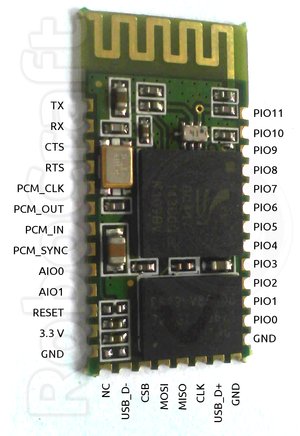
OpenSource Sensor Node firmware for BlueCore-based Bluetooth Modules

BlueCore4-Ext is a popular Bluetooth chip used in many Bluetooth modules, some priced below $10. The idea is to create Wireless Sensor/Control Network using this modules, as Bluetooth is really ubiquitous technology nowadays, so any smartphone can be used to provide user UI/control for such network. This is especially facilitated by the fact that BlueCore4-Ext is a SoC (system-on-chip) integrating microcontroller and peripherals in one package (small too), allowing it to be programmed with a user firmware for autonomous functioning with minimum of additional components. It even has built-in temperature sensor, so just add a battery and you have ready-made wireless temperature sensor (not too precise, granted, but you can calibrate it yourself ;-) ).

(Image by robocraft.ru)


BluTuNode is a firmware for such a Bluetooth Wireless Node, which allows to control it from a host over the air.

Source code: http://github.com/pfalcon/blutunode

Features implemented:
  • Full control of GPIO: input/output, configuring direction, pullups/pulldowns, etc.
  • Reading sampled from build ADCs.
  • Reading of temperature sensor.
  • Querying other system parameters.
  • Querying Bluetooth parameters.
  • Poll mode, when module automatically reads some sensor at specified period and sends information to host.
Features planned/ideas:
  • UART control (note that this is generally not a priority, because UART is mostly used to connect to host/microcontroller, and this firmware is designed for autonomous modules).
  • SPI/I2C/1-wire support to connect external sensors.
  • More Bluetooth-level information and control.
  • OpenSource tools to program/manage BlueCore modules.
  • Flash access/writing, over-the-air firmware updates.

Appendix:

Some technical characteristics of BC4-based module:

SoC: BC417 (BC417143B full model ID)
CPU: XAP2+, 16-bit RISC (no special 8-bit data support), Harward architecture, 64Kword data space, 1Mword+ code space
Flash: 1Mbyte (512Kwords, 75% typically occupied by Bluetooth stack/OS)
RAM: 24Kword
Execution environment: Virtual machine, no native hardware access (later versions of firmware OS support "native" mode, heavily bounds-checked still).

Thursday, March 29, 2012

Developing for TI LaunchPad MSP430 board on Ubuntu

If you google for it, you'll find quite a few blog posts, but most of them are from 2010. But starting with Ubuntu 11.10 (Oneiric), gcc-msp430 and friends are included in the main repositories, so you can just apt-get install them:

apt-get install binutils-msp430 gcc-msp430 \
    msp430-libc msp430mcu mspdebug

There's one annoying bug in Oneiric's version of binutils-msp430 which breaks build with -ffunction-sections -Wl,--gc-sections options (which is kinda common trick in embedded world to remove unused functions and reduce code size): mspgcc #3386145. It is fixed in Ubuntu 12.04 (Precise).

I'm however still running Maverick, so instead I downloaded following Oneiric packages:

binutils-msp430_2.21~msp20110421-2_i386.deb
gcc-msp430_4.5.3~mspgcc-4.5.2-20110612-1_i386.deb
libgmp10_5.0.1+dfsg-7ubuntu2_i386.deb
libmpc2_0.9-3_i386.deb
msp430-libc_20110612-1_i386.deb
mspdebug_0.16-1_i386.deb

Then few from Precise:
binutils-msp430_2.22~msp20110716p5-1_i386.deb
msp430mcu_20110613-3_all.deb

(If you try to install Precise versions of other packages on Maverick, they want to pull upgrades to system libs, which I wanted to avoid).

and installed them manually with dpkg.

Wednesday, March 28, 2012

Connetcing to preprogrammed TI Launchpad demo under Linux

TI Launchpad board comes with preprogrammed demo application for temperature sensing which is touted to output temperature values to host via USB-encapsulated UART. By connecting to it via terminal you can see that it indeed sends something, but that doesn't look anything like temperature represent in ascii digits, like someone naively could expect. It turns out that it's well kept secret on Launchpad wiki pages how to make sense out of it - at least, you get advertisements for CCS and Java-based GUIs to read out the output, but not straight docs of how to use builtin demo without all those crutches. So well, wrong approach - it's your random user-friendly arduino, approach of reading docs doesn't work here, better go straight to the source.

And, here's step by step instructions:

First thing to note is that Launchpad's UART-via-USB emulation is extremely fragile. It seems that if MCU started to produce UART output but host doesn't read it out, then buffer in USB bridge just gets overflowed and it stops responding to USB. So, if you want to get it working, follow each step below precisely and if any issue happens, restart from beginning (with unplugging LaunchPad).
  1. If you have plugged LaunchPad into USB, unplug it now to make sure you start with properly reset device.
  2. Plugin the board into USB, general-purpose green and red should blink interchangeably. The demo app doesn't yet sense temperature or sends it out yet in this mode.
  3. Execute stty 2400 -F /dev/ttyACM0 . That's right - the demo app communicates at 2400 bit/s data rate and using any other rate will produce garbage input. (One reason for such low speed is that LaunchPad's MCU actually doesn't have hardware UART, it is emulated in software).
  4. Run hexdump -v -C /dev/ttyACM0 . It shouldn't produce any output yet.
  5. Press GPIO button. The demo app goes into measurement mode and starts to send out temperature in Fahrenheit as raw bytes over UART. Try to heat/cool air around the board to see values change.
Sample output:

00000020  60 60 60 60 60 60 60 60  60 60 60 60 60 60 60 60  |````````````````|
00000030  60 60 60 60 60 60 60 60  60 60 60 60 60 60 60 60  |````````````````|
00000040  60 60 60 60 60 60 60 60  60 60 61 60 60 61 60 60  |``````````a``a``|
00000050  61 60 60 61 61 61 60 61  61 61 61 61 61 61 61 61  |a``aaa`aaaaaaaaa|
00000060  61 61 61 61 61 62 61 62  62 62 62 62 62 62 62 61  |aaaaababbbbbbbba|
00000070  62 62 62 62 62 62 62 62  62 62 62 62 62 62 62 62  |bbbbbbbbbbbbbbbb|
00000080  62 62 62 62 62 62 62 62  62 62 62 62 62 62 62 62  |bbbbbbbbbbbbbbbb|

Monday, February 20, 2012

NSLU Optware for Android

Yes, there was kind of attempt at that already, but:
  • It's no longer available at the link announced and spread over the Internet (yep, it's available at another, but why so ... complicated?)
  • It ships binary blobs of unknown origin. Yup, maybe one could trace their origins, but who'd bother, and telepaths are on vacation as usual. It should be described stringently where they are from, if not scripted to be collected in user's build directory from known good sources, so users can actually trust them.
  • It is marketed as supporting only something called "Nook Color". What's that, I thought it was Optware for Android? Could I have Optware specifically for my HP nx9420 notebook, serial number XYZZY, 3Gb of RAM? Just make sure it's different from the Optware for the same notebook, but with 4Gb of RAM, and from any other Optwares in the world!
  • It goes as far as patching rootfs ramdisk. That may work on Nook Color or may brick it. That may work on next firmware upgrade of Nook Color or may brick. That may work on another device or may brick. The talk is not about this, it's about the fact that it's two big differences - to be able to install and run bash and to have sshd started automatically after the boot. I definitely want first, but I will do good consideration if/when I need second. So, I don't want setup for those 2 stages to mixed and done without myself being ready for stage 2.
  • It still appears to rely on presence of some other 3rd party stuff (look at that #!/bin/sh line, there's no such thing on pristine Android device, only #!/system/bin/sh)
So well, I decided to take my turn on hacking up an Optware bootstrap script for pure Android (root and adb access are the only prereqs). It's hosted here: https://github.com/pfalcon/optware-android and intended to be run on a Linux hosts. It starts by downloading CodeSourcery toolchain for libc and ipkg and immediate dependencies from http://ipkg.nslu2-linux.org/feeds/optware/cs08q1armel/cross/stable to bootstrap ipkg on device. Yep, it's being tested on Nook Tablet so far, but at least it is called Optware for Android and I have that aim ;-). So, bugreports and patches are welcome. And I have few more devices to test it on, just steal me some time...